


It feels like every year, Apple quietly adds dozens of small features and improvements to the Messages app, most of them under the radar. These aren’t flashy or eye-catching features, but they’re the type of features that really add to the quality of life and experience of your messaging app. If you’re like most people, you’ve probably been using Messages apps the same way for years, and you’ve only just scratched the surface of what they can do. Here are some of the best messaging features you should know about.
If you would like to see a comprehensive walkthrough of the Messages app from start to finish, we highly recommend watching the video below.
1. Send later
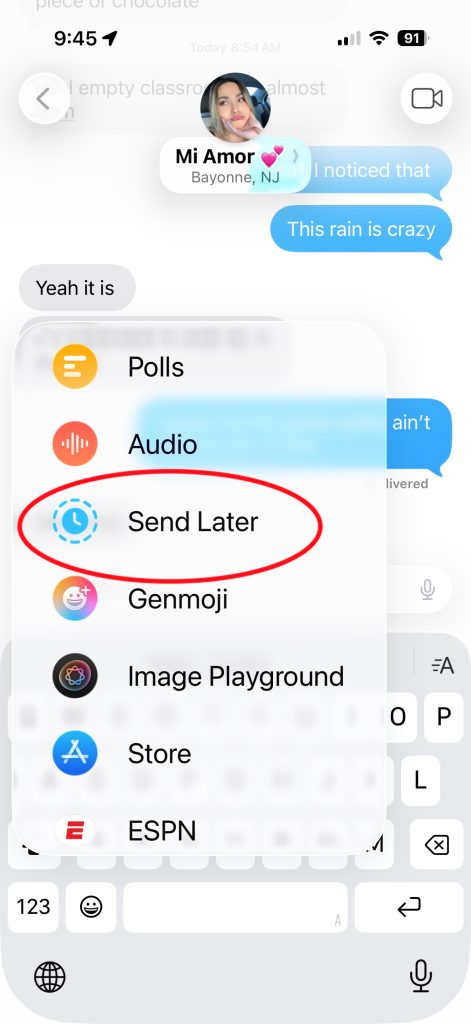
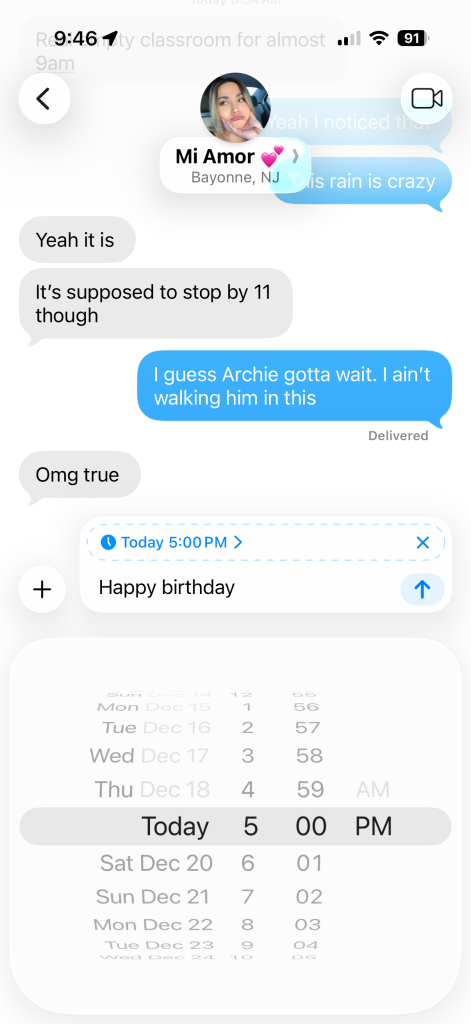
This is a relatively new feature, and one we’ve wanted for years. You can now schedule iMessages to send at a later time. For some reason, Apple hides this feature a bit, but once you know where it is, you’ll use it endlessly. Mainly used for birthday messages.
- Open a conversation in the Messages app
- Enter your message as usual
- Tap. + Button next to text field
- Select Send Later
- Please select date and time
- Tap “Send”
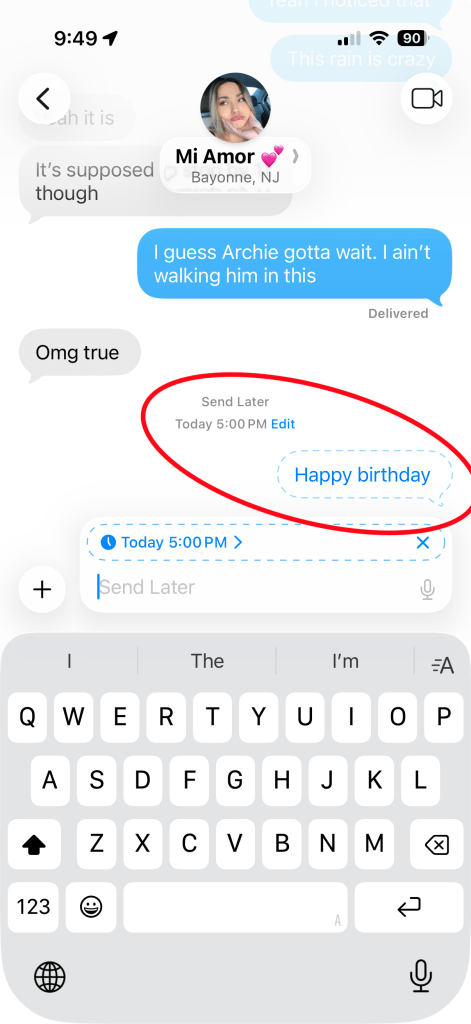
The message appears in the thread, with a dotted outline to indicate that the message hasn’t been sent yet, but is set to be sent at the time you selected. Such a convenient function
2. Check-in
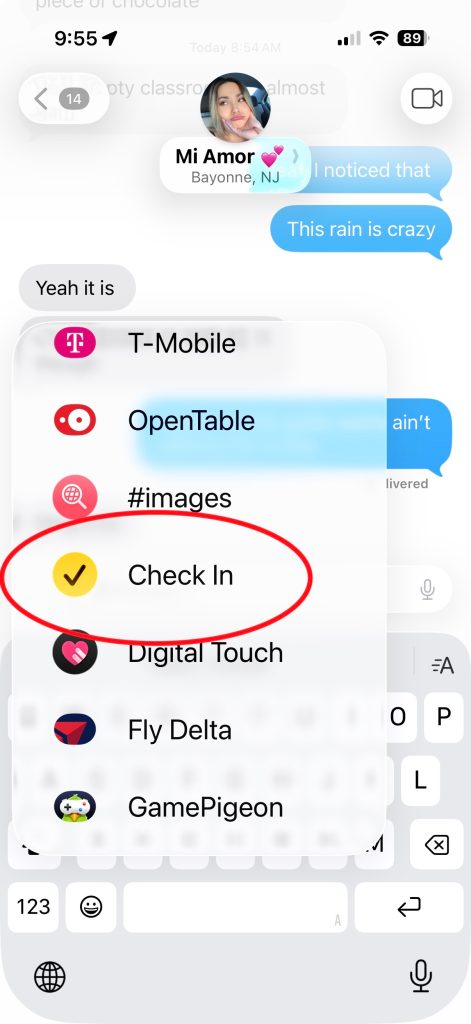
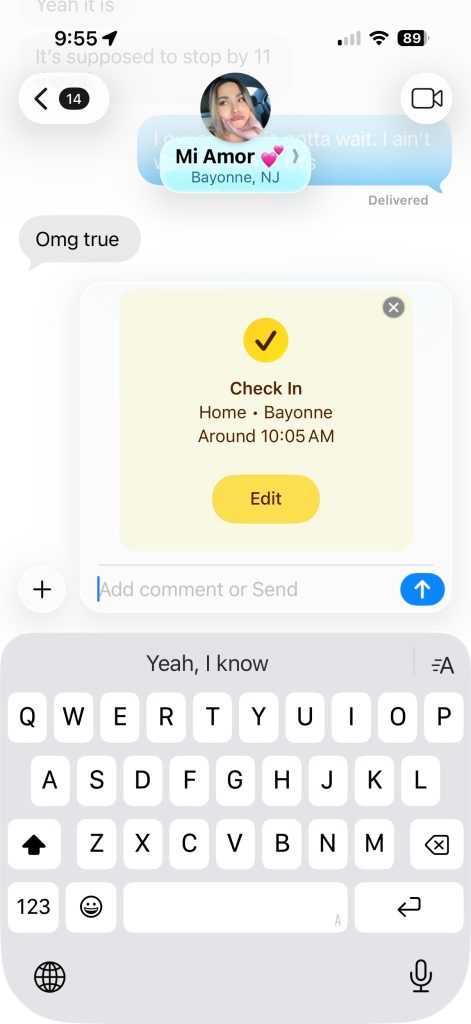
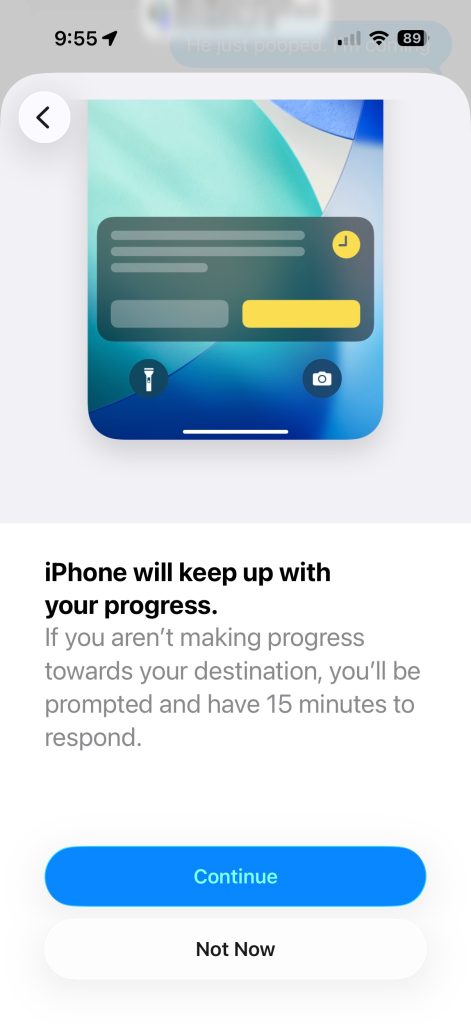
This is one feature that makes perfect sense in a huge number of situations. Check-in is a safety feature built into iMessage that automatically notifies your trusted contacts when you arrive at your destination. It will also alert you if anything goes wrong along the way. So if you have kids or loved ones and want to make sure they arrive where and when they’re supposed to arrive, this feature will make it happen.
- Start a conversation with the person you want to share with
- Tap. + Button next to text field
- Select check-in
- Please select your arrival time or after timer
- Set destination and time limit
- See what data is shared (location, battery, signal)
- Tap “Start Check-in”
Of course, this is for safety and awareness purposes, but Apple has also added a training component to this. This means that after I complete my workout, I can set it to check in with my wife and let her know that the workout is complete.
3. Voice messages and transcription
The ability to send voice messages has been around for a while, but the best feature today is transcription. When you send or receive a voice memo, iOS instantly transcribes the entire message, no matter how long or short. You can then tap the message to read the message instead of listening. It saves a lot of time and is very accurate.
- Start a conversation with the person you want to share with
- Tap. + Button next to text field
- audio selection
- Your message will begin recording in the text field.
- Tap the stop button when done
- Tap “Send”
From there, transcription occurs, and you can treat the transcription of that text like any other text. You can also copy and paste it elsewhere if you wish.
4. Inline replies and reactions
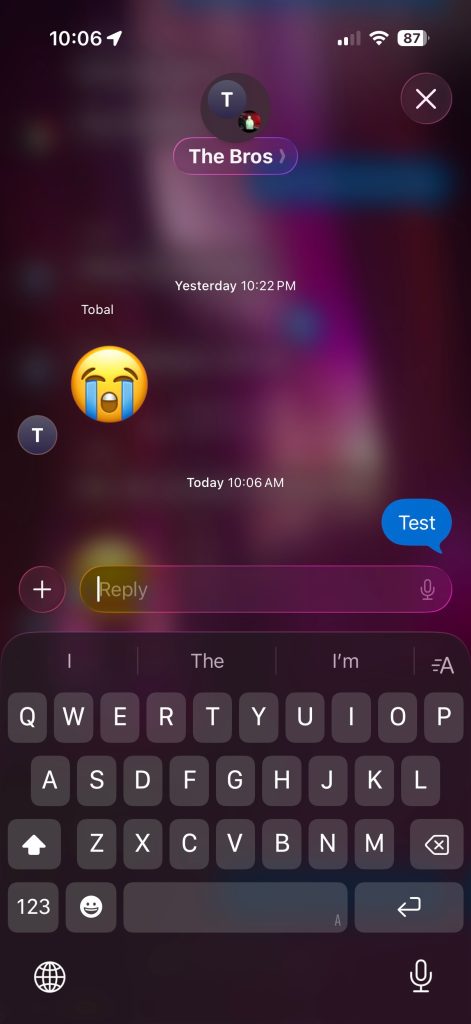
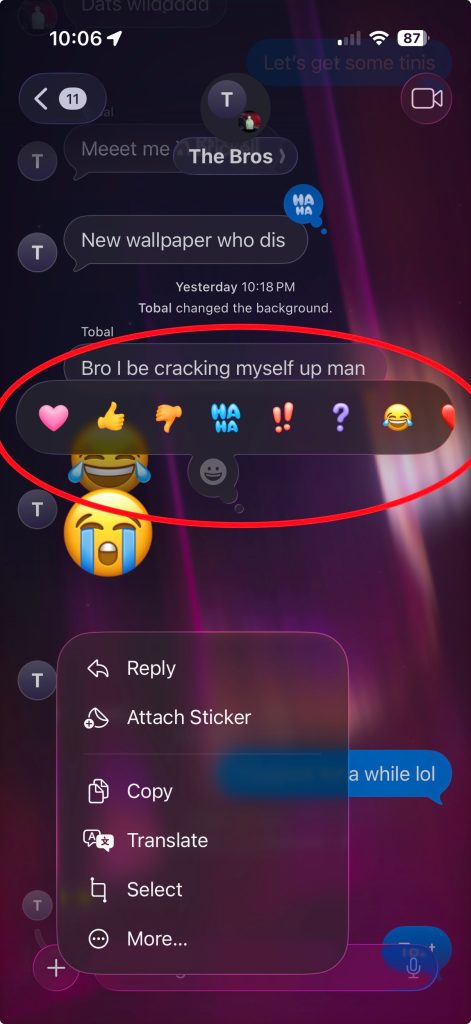
If you’ve ever been in a group chat with multiple people, you know the importance of these features. First, there are inline replies. This allows you to reply to a specific message sent by someone in your chat, even if it was sent a while ago. To do this, long press on a message or swipe right on a specific message. So when you reply, you’ll be replying directly to that message, not the entire chat. However, please note that the message will also be visible throughout the chat.
Reactions are another fun way to communicate without texting in the Messages app. Reactions can be helpful just to acknowledge that you received a message from someone. To react to a message, just long press or double tap on the message you want to react to and emoji options will appear. The new feature here is that you can now react with any emoji, whereas previously you could only choose six.
5. Fixed conversations
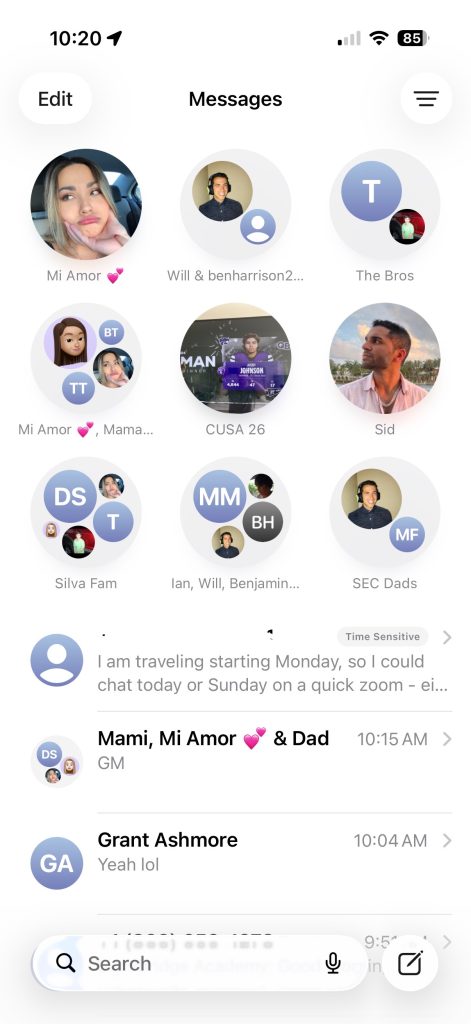
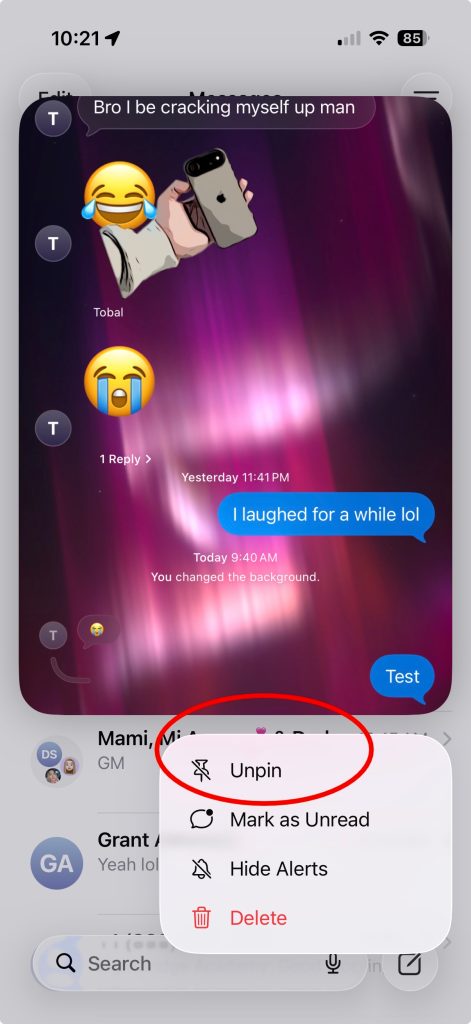
If you watched our video first, you may have noticed that I pin a lot of our conversations to the Messages app. Apple offered this feature a few years ago, and people still sometimes ask me what it is when they look at my phone. Conversation pinning is one of the features I use most often. Here’s how:
- Open the Messages app
- Find the conversation you want to pin
- long press on the conversation
- Tap Pin or swipe right on the conversation and tap the pin icon
Apple limits pinned conversations to nine, so if you already have nine and want to pin one, you’ll have to delete some. I hope that restriction will be lifted soon.
final take
As we saw above, iMessage and the Messages app have quietly evolved into a do-it-all messenger app. Previously, it was a much more limited app, especially when compared to other apps like Telegram and WhatsApp. However, with all the new features it has adopted over the years, it has now established itself as one of the best messaging apps on the market. This article just scratches the surface of what the Messages app can do. Be sure to check out the complete walkthrough and tutorial video to see it all in action.
What do you think? Did you know you can do all this with the Messages app? What is your favorite iMessage feature? Let’s discuss below
Apple deals


(tag to translate)iMessage



