


iPadOS 26 is without a doubt the most significant change to iPad software we’ve seen to date. Between the new multitasking window in 26.0, Slideover improvements in 26.1, and the return of Split View in 26.2, multitasking on iPad is finally natural, intuitive, and productive without compromise. Since Apple adopted its own operating system with iPadOS 13, it seems like it’s finally listening to what I’ve been asking for from an iPad. The best part is that Apple is giving iPad users the best of all forms of multitasking, from full window mode to Stage Manager to new multitasking. After using it for a few months, I’ve discovered some of my favorite features and use cases.
Be sure to check out our detailed walkthrough on every aspect of multitasking that iPadOS 26 has to offer.
Also note that any iPad that can run iPadOS 26 or later, including the iPad 11 and iPad mini, can take advantage of all of these features. Amazon has some insane Black Friday deals, including the iPad 11 for $279 (usually $349), the iPad mini for $399 (usually $499), the M3 iPad Air for $449 (usually $599), and the iPad Pro for $899 (usually $999).
1. Background tasks
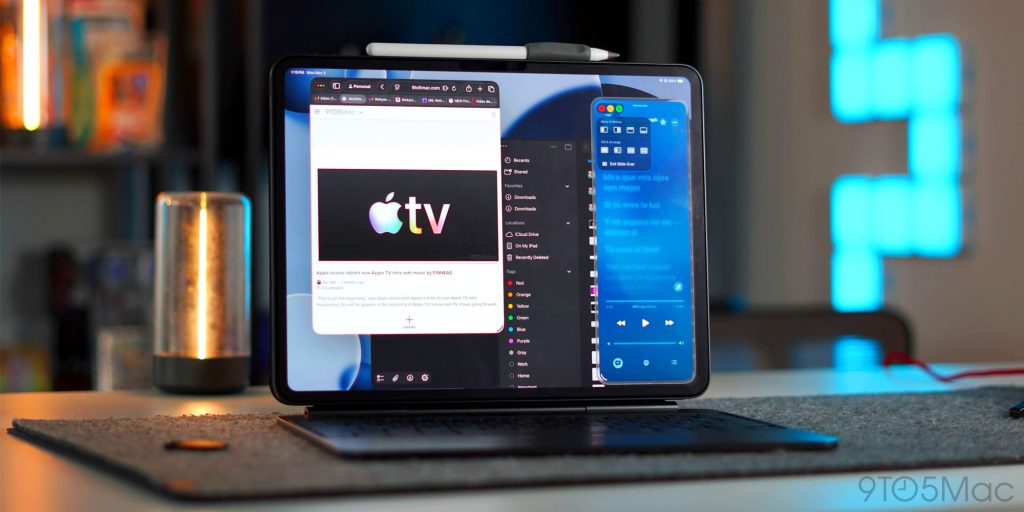
For me, this was a huge update in terms of overall quality of life and ease of use for personal flows. The two apps I use most on my iPad Pro are Lumafusion (for video editing) and Affinity Photo 2 (for creating thumbnails). While the apps have always been great on any version of iPadOS, there was one thing that always bothered me. Once you’re done editing your video, of course you need to export it. In older versions of iPadOS, if you leave the Lumafusion app running at any capacity, the export will be canceled automatically. This was not Lumafusion’s fault. Rather, this was a limitation imposed by iPadOS. So you have to wait until the video is exported and then you can start editing thumbnails in Affinity Photo. iPadOS 26 gradually enables multitasking and removes that restriction. You can now start the export in Lumafusion and open Affinity Photo in windowed mode to start editing the thumbnails. Video export will continue. This effectively doubled my productivity by eliminating the need to waste time just waiting for exports. This is an absolute game changer for me.
2. Spotlight is a multitasking superpower
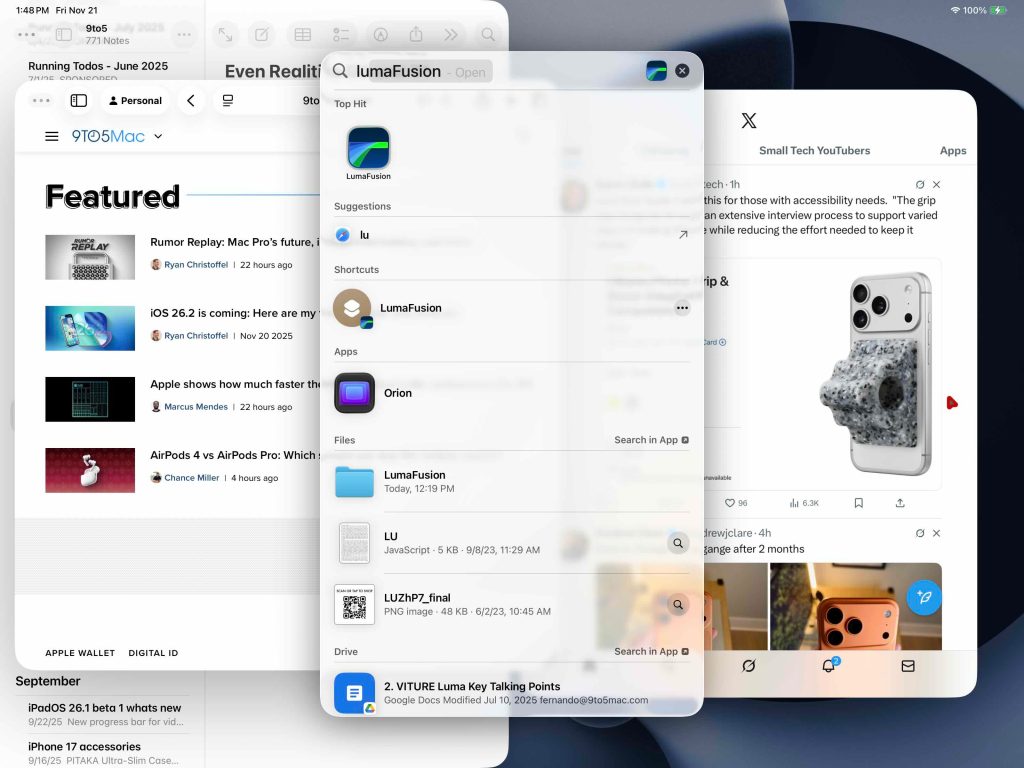
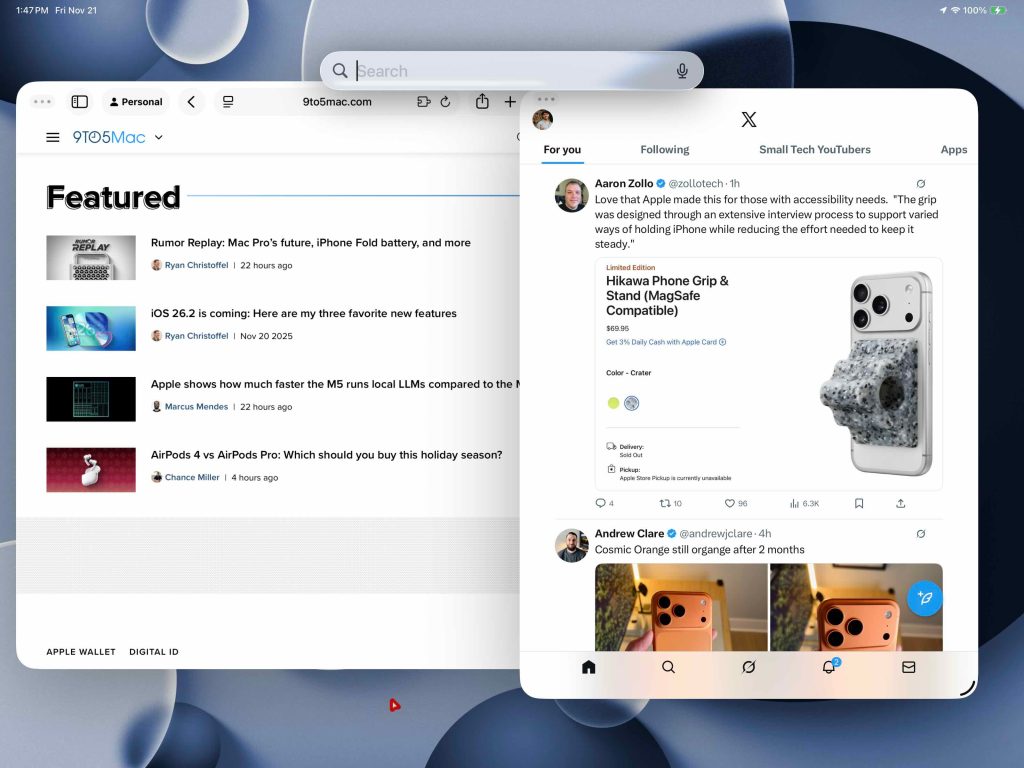
Another great use case for multitasking in iPadOS 26 is using Spotlight Search. We all know that you can put your most frequently used apps on the dock for instant access. If you’re in app or windowed mode, you can drag the dock to select additional apps to add to your multitasking view. But we’ve actually found a faster, easier way to multitask with any app, not just the ones on the dock. The answer is Spotlight shortcuts. No matter where you are in your operating system: on your home screen, within an app, or when you have 10 apps open, press CMD + Spacebar to see the Spotlight search bar. Then quickly type the name of the app you’re looking for and tap or drag it into view. That way, you’ll be able to multitask with the new app.
What I like about this is that it’s not limited to just dock apps and is super easy to launch.
3. Multiple instances of one app
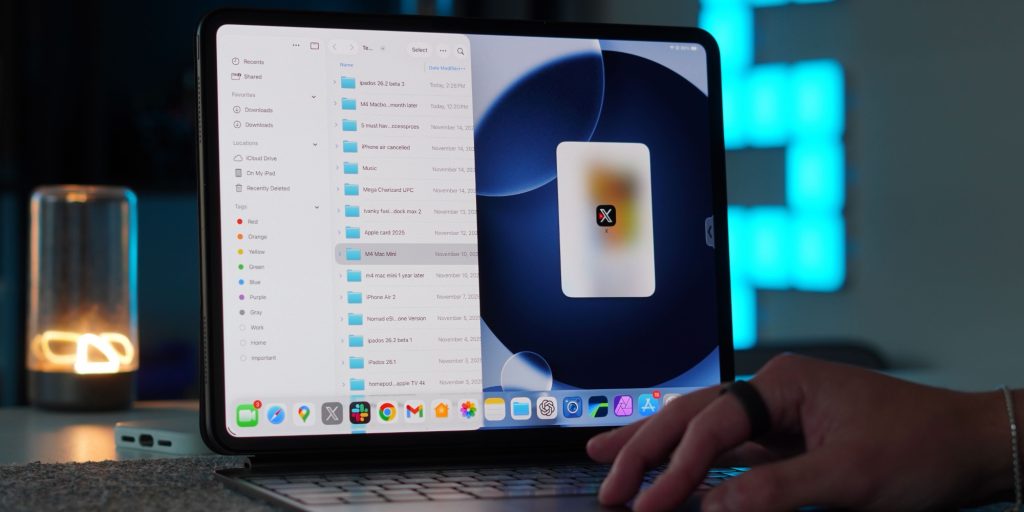
The idea of having multiple instances of the same app on an iPad is not new. We’ve had it for several years now. The question was which apps would support it. I was able to do that with Safari, Notes, Files, and a few other native apps. However, the best-case scenario is in the Files app and file management. I like to use external SSDs like the Lexar SL500 and the Samsung T7 and T9 (both available now). I transfer large video files from iPad storage to SSD and also use SD cards. So the new multitasking mode combined with the improved Files app and background task management is a great combination. Easily move files from one device to another. You can also move multiple files between multiple storage devices at once, speeding up your workflow and making management much easier. I used an M4 Mac mini for this part of the video creation because it was easy on MacOS. But now iPadOS 26 has you covered nicely.
Final Thoughts: Will it now replace the Mac?
For years, iPad hardware has consistently outperformed software. iPadOS 26 is the first time Apple has delivered a flexible, consistent, hardware-built multitasking system.
- Background tasks are now a game-changer for your workflow
- With the return of Split View, iPad provides a familiar, controlled experience.
- Spotlight adds speed and keyboard-driven workflow capabilities.
- And multiple file windows finally bring serious file management to your iPad.
Apple still has room to simplify things further, but for the first time in a while, the iPad’s multitasking capabilities feel like they’re on the right track. However, I truly believe that if you’re not rendering 3D animation, consistently working with large video files, or don’t need terminal or coding access, then yes. The iPad can now replace a laptop or laptop use case for most people.
What do you think? Can you do everything on an iPad? If not, what’s holding you back? Let’s discuss below!
Great iPad deals





