


macOS is designed to put your Mac to sleep when it’s not in use. Usually that’s exactly what you want. Sleep saves power, protects battery life, and prevents your MacBook from running when you close it and pack it in your bag.
Tasks such as downloads, backups, remote sessions, and AI coding may require temporary exceptions. Luckily, there are some great Mac apps that give you this control.
Limited solutions included in macOS
Apple provides some control in system settings.
On macOS, you can access the following locations: System settings > Lock screen Change when the display is turned off. With your Mac laptop, you can: System Settings > Battery > Options To prevent the power adapter from automatically sleeping when the display is off.
Apple also supports using your Mac laptop with the lid closed when connected to a power source and paired with an external display, keyboard, mouse, or trackpad.
I usually prefer not to make these settings permanent. Most of the time, you want your Mac to sleep normally. Instead, you need a quick, deliberate override that you can turn on for a specific job and turn off when you’re done.
To that end, there are three Mac utilities worth knowing about.
KeepingYouAwake can be easily toggled with one click
KeepingYouAwake is the utility that has been in my Mac menu bar the longest.
It’s free, lightweight, and built on the same basic ideas that popularized Caffeine years ago. This means your Mac will stay awake when you click the icon in the menu bar. Click again to return your Mac to normal sleep behavior.
I started using KeepingYouAwake a few years ago when Macs transitioned to Retina displays. Caffeine, the classic coffee cup utility, has not migrated to high-resolution designs.
KeepingYouAwake is now a simple replacement. In keeping with the Caffeine ethos, there are no dashboards or complex automations. It’s just a reliable on/off switch for your Mac’s default sleep behavior.
You can enable it indefinitely or for a preset period of time, and you can also disable it automatically when your MacBook’s battery drops below a set level. It supports Retina display and dark mode, and uses Apple’s built-in features under the hood. caffeinate Command line utility.
Important Limitation: KeepingYouAwake is not a lidded solution. Its own documentation makes clear that macOS limitations and thermal considerations only prevent desktop and portable Macs from sleeping with the lid open.
That’s why KeepingYouAwake is perfect for simple tasks like reading, presentations, screen recording, long downloads, or when you’re still using your Mac and don’t want to turn off the screen or system. This is a utility I use as my daily “don’t sleep yet” toggle.
Amphetamines are the gold standard for closed-lid sessions
When I actually want to close my MacBook and keep the task running, the app I open is Amphetamine.
Amphetamines have long been the gold standard in this category because they allow much more control than a simple on/off switch.
A session can start indefinitely, while downloading a file or running a specific app, up to a specified time. You can also decide what happens to display sleep, screen saver, screen lock, and system sleep when you close your MacBook’s built-in display.
That last part is key to my current workflow. KeepingYouAwake is for simple open-lid situations. Amphetamines are used when you want Codex, downloads, or other long-running tasks to continue after you close the lid.
Amphetamines can also be used to automate sessions using triggers. You can keep your Mac awake even when an external display is connected, certain apps are running, a USB or Bluetooth device is connected, your Mac is connected to certain Wi-Fi networks, the power adapter is connected, the battery level is above a threshold, or the CPU usage is at a threshold.
If all you want is a coffee cup style toggle, that may be overkill. However, additional control is important when used with the lid closed. You can make your sessions temporary and tied to what you’re actually doing, so you don’t leave your Mac awake longer than necessary.
Coca is a new App Store option with closed support
Coca is another option that recently came to my attention through the Mac App Store. It offers the same general promise: a lightweight menu bar utility that keeps your Mac awake when you need it.
This app is free with optional support available for purchase. It features one-click activation, optional timer, focus filter, and shortcut support. Coca 2.0 recently updated the app with a redesigned settings interface, custom time controls, and closed lid support.
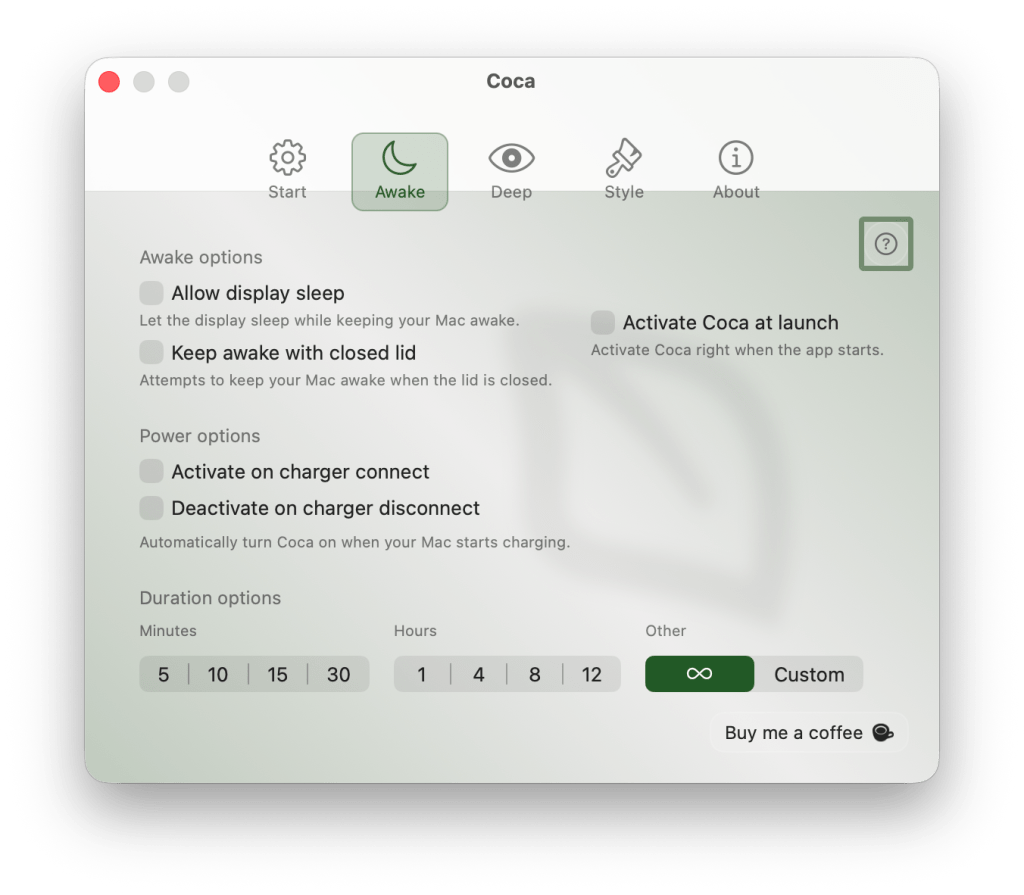
So while Coca can be interesting if you’re looking for something closer to KeepingYouAwake in spirit, it hits important territory for MacBook users who tend to close the lid during long periods of work.
If you want detailed triggers and session rules, amphetamines still appear to be the most powerful option. If you want a simpler, more modern Mac App Store utility with a built-in closed-lid mode, Coca is worth considering.
Which apps do you use on your MacBook for these types of tasks? Share your thoughts in the comments!


(tag to translate)macOS



